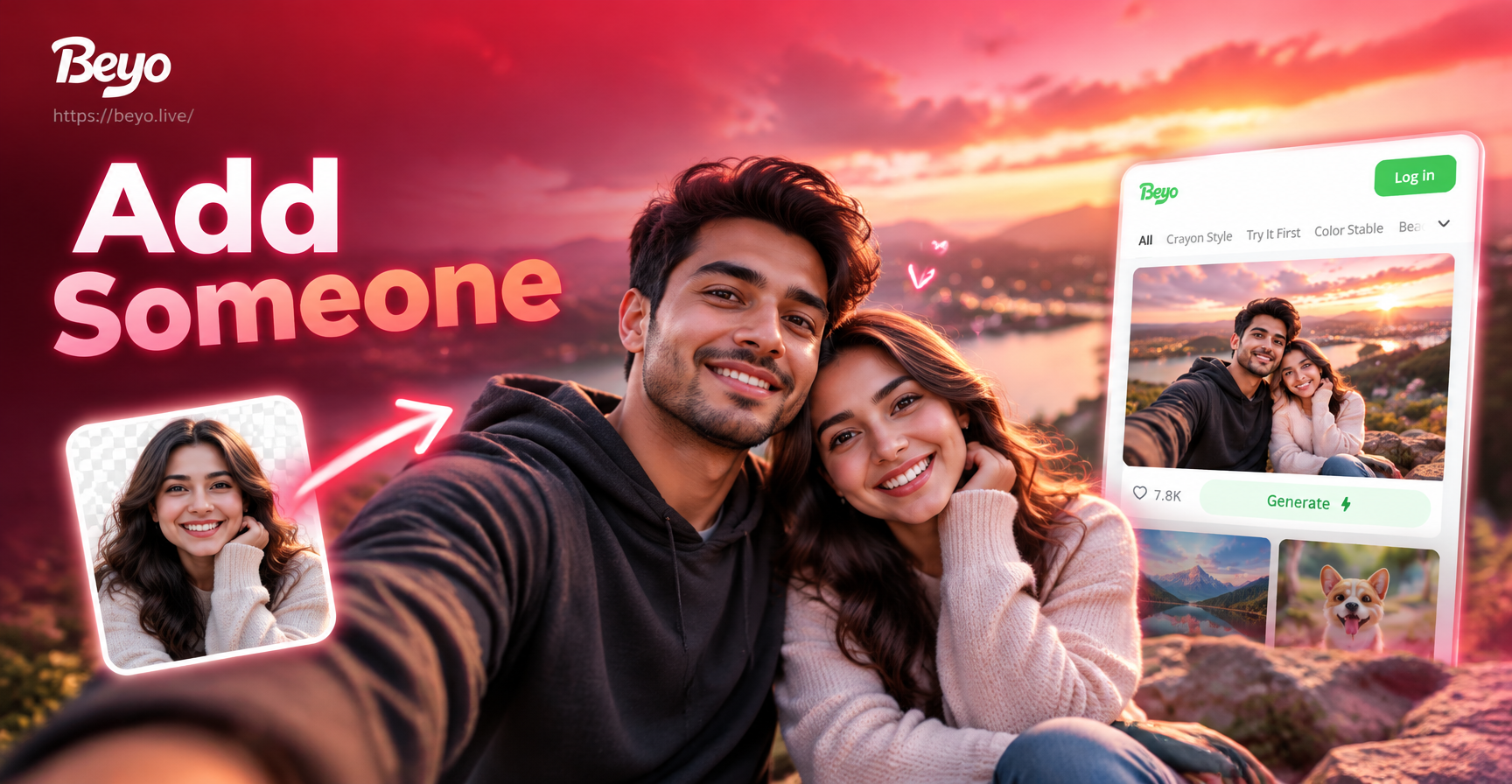
Have you ever looked at a group photo and wished someone who missed the shot could still be in it? Or maybe you want to place a friend into a scenic background they never visited. Learning how to add someone in a picture is easier than ever with modern AI photo editing tools. This guide covers both traditional and AI based methods, with a focus on a simple mobile app approach that gives realistic results in minutes.
Why Add Someone to a Picture?
There are many practical and creative reasons to add a person to an existing image. Common situations include fixing an incomplete family portrait, adding a friend who could not attend an event, creating composite photos for social media, or simply having fun placing someone in a famous location or fantasy scene. Whatever your reason, the goal is always the same: make the added person look like they were originally part of the photo.
Traditional Methods vs AI Photo Editing
Before AI tools became popular, adding someone to a picture meant using professional software like Photoshop. You had to cut out the person from one photo, paste them into another, adjust lighting and shadows, match color tones, and carefully blend edges. This process could take hours and required advanced skills. AI photo editing changes that. AI can automatically detect faces, understand lighting and perspective, and seamlessly blend a new person into an existing photo with just a few taps. This makes the process accessible to anyone with a smartphone.
How to Add Someone in a Picture Using beyo
The beyo app is an all in one AI design tool available on Google Play. It offers image to image generation and multi person photo processing, which makes it perfect for adding someone to a picture. Here is a step by step guide.
Step 1: Download the beyo App
Go to Google Play and install beyo on your Android device. The app is free to download and offers a range of AI powered photo editing features. Once installed, open the app and allow the necessary permissions for accessing your photo library.
Step 2: Upload Your Base Photo
Choose the picture you want to add someone into. This is your base photo. It could be a family portrait, a travel shot, or any image where you want to insert an extra person. Make sure the base photo is clear and has enough space where the new person will be placed. Good lighting and a simple background make blending easier.
Step 3: Select the Person You Want to Add
Next, upload a photo of the person you want to add. This photo should ideally have a plain background and show the person clearly from the front. The AI will use this image to extract the person. In beyo, you can use the image to image feature to combine the two photos. The app will identify the subject in the second photo and prepare it for merging.
Step 4: Position and Blend the New Person
After both photos are loaded, you can choose where to place the new person in the base photo. The AI will automatically match the lighting, color, and perspective as much as possible. If the placement does not look perfect, you can adjust the size and position before generating the final image. Some prompts or style filters may also help blend the person more naturally.
Step 5: Generate and Refine
Tap the generate button and let the AI process the image. In seconds, you will get a composite photo with the added person. If the result is not perfect, try again with a different position or a better source photo of the person. You can also use the app's editing tools to fine tune the output. Once satisfied, download the image to your phone or share it directly on social media.
Tips for Making the Added Person Look Natural
To get the best results when adding someone to a picture, keep these tips in mind. First, use a source photo of the person with similar lighting to the base photo. If the base photo was taken outdoors in daylight, use a source photo taken in similar conditions. Second, match the angle and pose. If the base photo shows people standing straight, the added person should also be standing straight. Third, consider the scale. The added person should be roughly the same size as other people in the photo. Fourth, choose a base photo with an uncluttered background where the new person will be placed. This makes it easier for the AI to blend edges seamlessly.
Common Mistakes to Avoid
One common mistake is using a low resolution source photo of the person. The AI needs clear facial features to produce a realistic result. Another mistake is ignoring shadows. If the base photo has strong shadows, the added person should have a similar shadow direction. Without proper shadow matching, the result will look fake. Also avoid placing the new person too close to the edge or overlapping other people in a way that looks unnatural. Finally, do not expect perfect results on the first try. AI photo editing is powerful but may require a few attempts to get the positioning right.
Creative Use Cases for Adding Someone to a Photo
Beyond fixing missing family members, you can use this technique for many creative projects. Create a fun birthday card by adding a friend to a party photo they missed. Make a memorial photo by adding a loved one into a recent family picture. Design a travel mockup showing yourself in front of the Eiffel Tower even if you have not been there yet. Or create a fantasy scene by adding a person into an AI generated background. The possibilities are endless.
Frequently Asked Questions
Can I add someone to a picture on my phone?
Yes, you can use the beyo app on Android to add someone to a picture. The AI powered tools make it simple and fast without needing a computer or professional software.
Do I need two photos to add someone?
Yes, you need a base photo where you want to add the person, and a separate photo of the person you want to add. The AI combines these two images into one.
Will the added person look real?
The result depends on the quality of the source photos and how well you position the person. With good lighting, matching angles, and a clear source image, the added person can look very convincing.
Is beyo free to use?
The beyo app is free to download from Google Play. Some advanced features or style filters may require in app purchases, but the basic image to image editing works without cost.
Can I add more than one person?
Yes, the app supports multi person photo processing. You can add multiple people to a group photo by repeating the process for each person. The AI can handle group photos without losing detail or blending faces.
Conclusion
Learning how to add someone in a picture is a valuable skill for personal and creative projects. With AI tools like beyo, the process is no longer limited to design professionals. You can achieve natural looking composite photos in just a few steps on your phone. Try it today and see how easy it is to bring everyone into the picture.