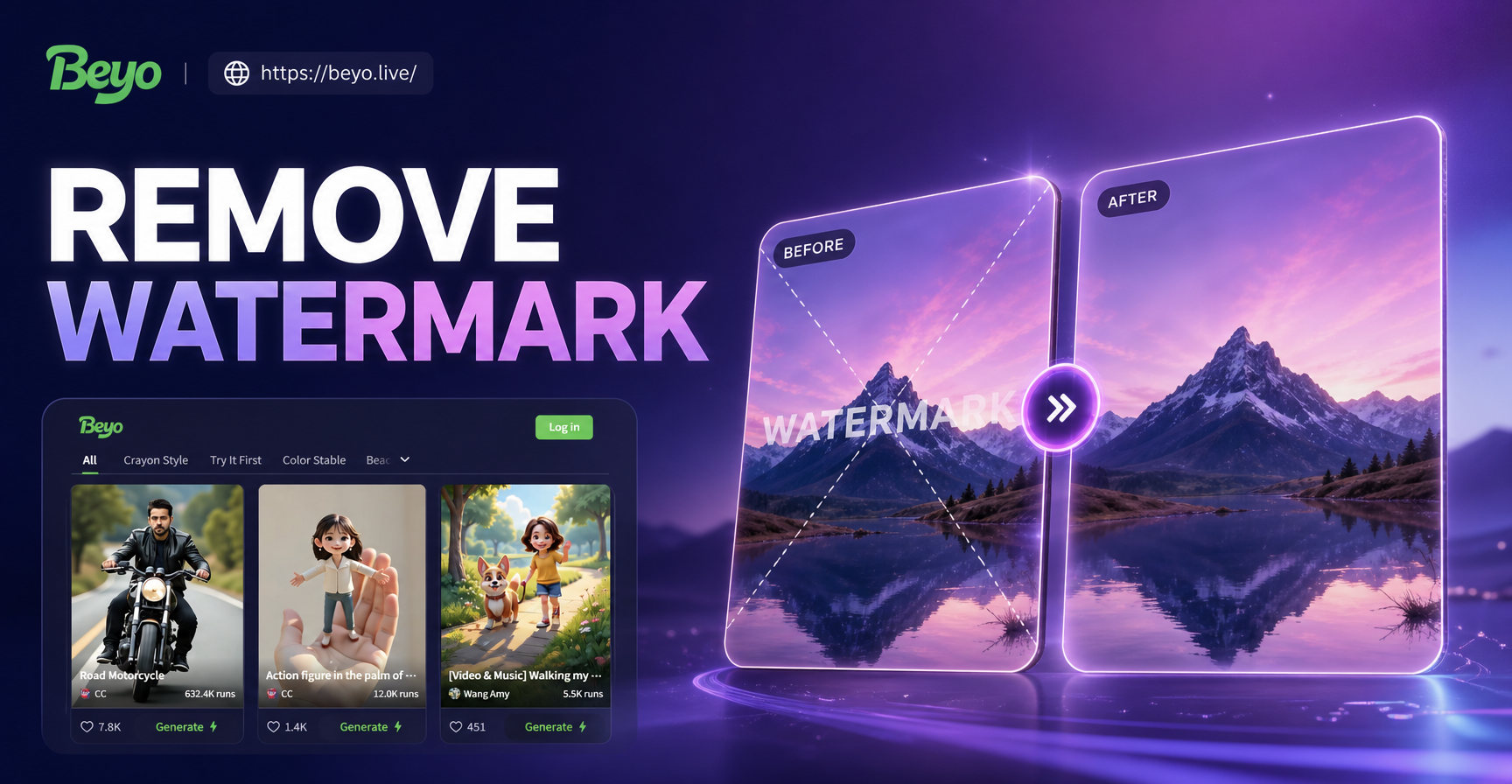
Watermarks appear on pictures for many reasons. Photographers and stock platforms add them to protect copyright, while apps sometimes place a small logo on exported images. If you own an image or have explicit permission to edit it, you may need to know how to remove watermark in picture. The right method depends on where the watermark sits, how complex the background is, and which tools you have available. This guide walks through five reliable techniques, from quick cropping to AI assisted inpainting, so you can get a clean result without damaging the original photo.
1. Crop the Watermark Out
Cropping is the simplest approach when the watermark sits near the edge of a picture. Most photo editors, including free mobile apps, have a crop tool. You simply drag the crop boundary inward until the watermark is outside the visible frame. This method preserves image quality because you are not cloning or painting over any pixels. However, it only works when removing the watermark does not ruin the composition. If the watermark appears in a corner and the main subject remains well centered, cropping can be a quick fix. Always keep a copy of the original file before cropping so you can revert if the new framing looks too tight.
2. Use the Clone Stamp and Healing Brush
Clone stamp and healing brush tools copy pixels from one part of an image and paint them over another area. They are available in Photoshop, GIMP, Photopea, and many advanced mobile editors. These tools work well for watermarks placed over textured backgrounds such as grass, sky, fabric, or skin. The clone stamp copies source pixels exactly, while the healing brush blends the copied texture with surrounding lighting and color. For clean results, sample from an area as close to the watermark as possible.
Step by step with the clone stamp
- Open the picture in your editor and zoom in to at least 200 percent.
- Select the clone stamp tool and set a soft brush slightly larger than the watermark stroke.
- Hold the Alt key (or Option on Mac) and click a clean area near the watermark to set the source point.
- Release Alt and carefully paint over the watermark. Work in small strokes and resample often.
- Zoom out to check the result. Fix any repeated patterns by sampling from a different area.
For backgrounds with soft gradients, the healing brush often produces smoother results than the clone stamp. Use multiple small passes instead of one long stroke to avoid obvious smudges.
3. Use AI Inpainting to Rebuild the Area
AI inpainting is now the fastest option for many complex backgrounds. Inpainting tools analyze the surrounding pixels and generate new content that matches the texture, lighting, and perspective. Some desktop editors, online services, and mobile apps include this feature. If you already use an AI design app like beyo, you may be familiar with image-to-image editing and style filters. While beyo focuses on creative image generation and style transfer rather than dedicated watermark removal, you can still use its image-to-image workflows to experiment with rebuilding small damaged areas. For direct watermark removal, look for an editor with a dedicated inpaint or object removal tool.
Step by step with an AI inpainting tool
- Upload the picture and select the inpainting or object removal option.
- Use the brush to paint over the watermark. Make the mask slightly larger than the watermark.
- Run the AI fill and wait for the tool to generate a replacement texture.
- Review the result at full zoom. If the area looks soft or blurry, undo and try a smaller mask.
- Export the image in its original resolution to avoid quality loss.
AI inpainting works best on natural textures like wood, stone, water, and foliage. It can struggle with text, logos, or fine lines, so you may need to combine inpainting with the clone stamp for a perfect finish.
4. Use Content-Aware Fill in Photoshop
Photoshop's content-aware fill is a more advanced version of inpainting. It lets you select the watermark with the lasso or marquee tool, then automatically fills the selection using surrounding pixels. To use it, select the watermark, go to Edit, and choose Content-Aware Fill. A preview window shows how the fill will look. You can adjust the sampling area to exclude unwanted objects and improve the match. Content-aware fill is effective for watermarks on gradients, skies, and simple patterns. For best results, expand the selection by a few pixels before running the fill. This prevents a visible outline around the repaired area.
5. Try a Free Online Watermark Remover
Several browser based tools can remove watermarks automatically. They are convenient when you need a quick result and do not want to install software. Most work by letting you upload an image, highlight the watermark with a brush, and download the cleaned version. The main tradeoff is privacy. You should never upload sensitive, personal, or copyrighted images to an online service you do not trust. Check the service's data policy and delete your uploads after processing. For higher quality and better control, use a desktop editor or a trusted mobile app.
Tips for Clean, Natural Results
- Work on a duplicate layer or a copy of the file so you can always undo mistakes.
- Zoom in to at least 200 percent while repairing, but check the full image frequently.
- Use a soft brush with low opacity for gradual blending.
- Sample from multiple nearby areas to avoid visible repetition.
- Compare before and after side by side to spot color mismatches or blurry patches.
- Save in a lossless format such as PNG or TIFF while editing, then export as JPEG for sharing.
Legal and Ethical Considerations
Removing a watermark from an image you do not own or lack permission to edit is usually a copyright violation. Watermarks exist to protect the creator's work. Before using any of these methods, confirm that you have the rights to modify the picture. This might mean you took the photo, purchased a license, or received written permission from the owner. Do not use watermark removal to republish someone else's work as your own or to bypass licensing requirements. Ethical editing respects the original creator and the terms of use.
Common Questions About Removing Watermarks
Can I remove a watermark without losing image quality?
Yes, but only if you use a non destructive method such as cropping on a copy or working with high resolution source material. Clone stamp, healing brush, and inpainting can preserve quality when applied carefully and exported at original size.
Will AI always remove a watermark perfectly?
No. AI inpainting is powerful but not perfect. It can leave artifacts, blurry areas, or mismatched textures on complex backgrounds. You may need to combine AI fill with manual clone stamping for the best result.
Is it legal to remove watermarks from stock photos?
No, unless you have purchased a license that grants you the right to edit and use the image without the watermark. Removing a stock photo watermark without permission is a copyright violation.
Conclusion
Learning how to remove watermark in picture gives you more control over your own images and licensed assets. Start with cropping if the watermark is near an edge. Use clone stamp or healing brush for textured backgrounds. Choose AI inpainting or content-aware fill for complex areas that need rebuilding. Always keep the original file, work in small steps, and respect copyright. If you want a faster creative workflow on your phone, download beyo and explore its AI image and video tools for your next project.