Edit Subtitle Video

Choose the Subtitle Style That Fits Your Video
Browse AI caption and subtitle filters that match your content, from bold TikTok captions to minimalist cinematic subs. Pick a style and apply it instantly in the app.
Key Features for Editing Subtitle Videos
Beyo gives you everything you need to create clear, stylish subtitles for your video content. From automatic captioning to custom text animations, every tool is built for speed and simplicity.
Auto Caption Sync
Upload your clip and let AI generate precise, time-aligned subtitles automatically. No manual typing or frame hunting, just clean captions that match every spoken line.
Stylish Subtitle Templates
Apply trendy text designs, fonts, and animations to your subtitles. From bold social captions to elegant movie style subs, find a look that fits your video.

Fast Subtitle Restyling
Change subtitle color, size, position, and style without rebuilding the whole edit. Adjust text overlays quickly and keep your video's mood consistent across platforms.
Subtitle Video Creations Gallery
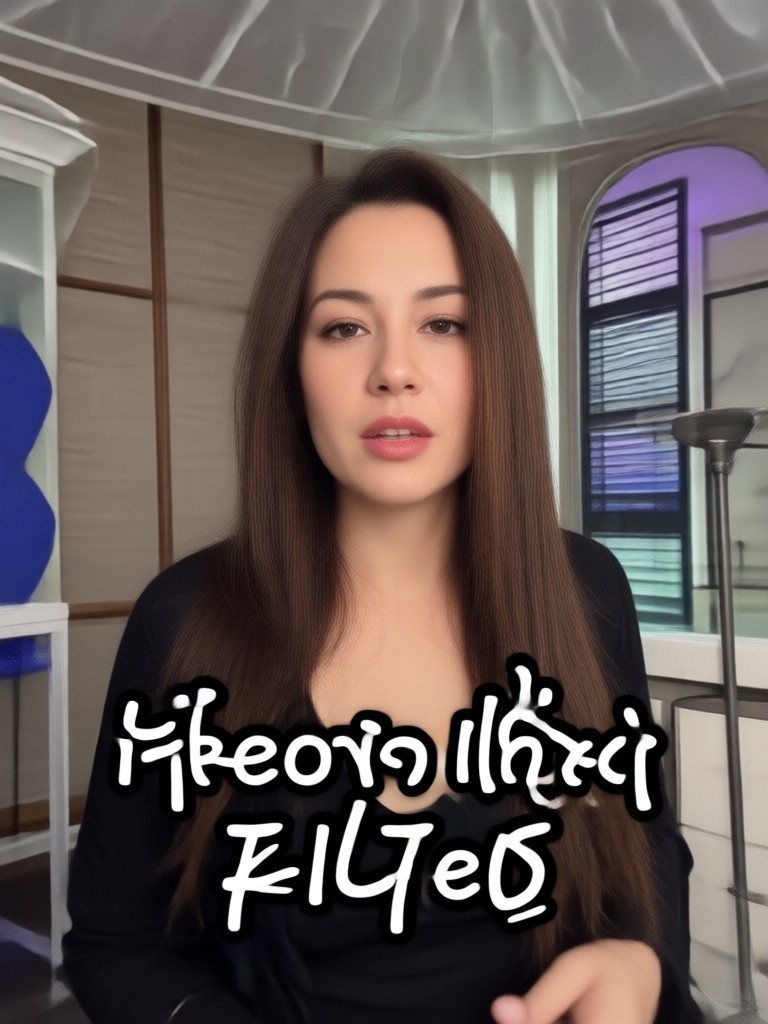
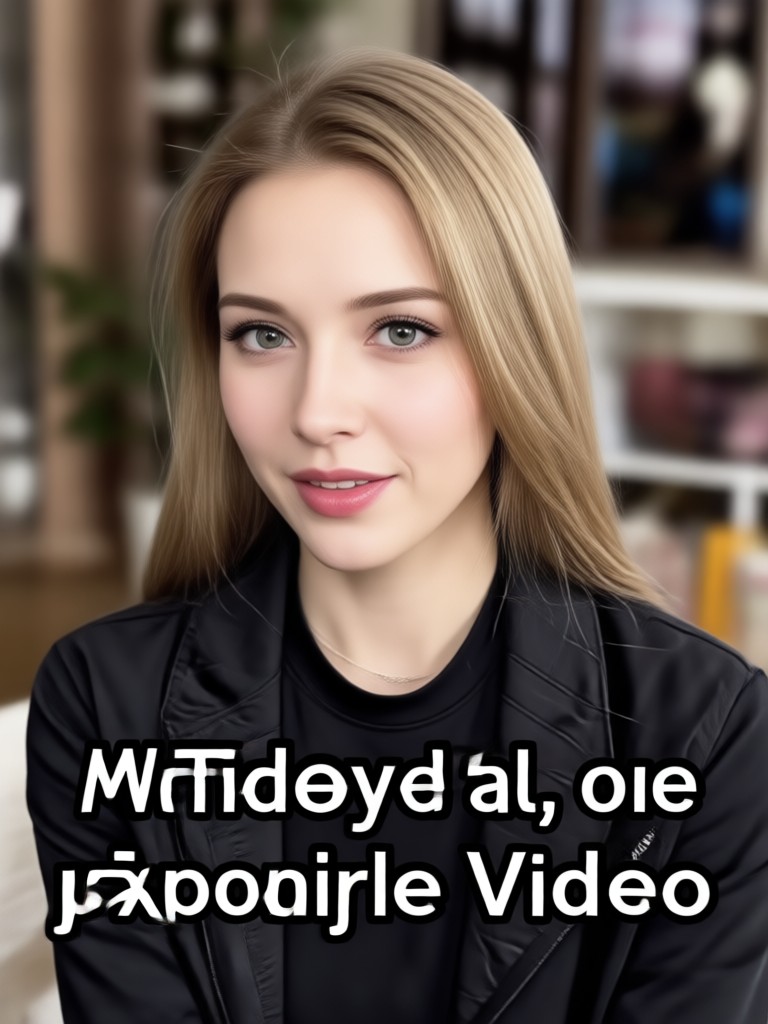
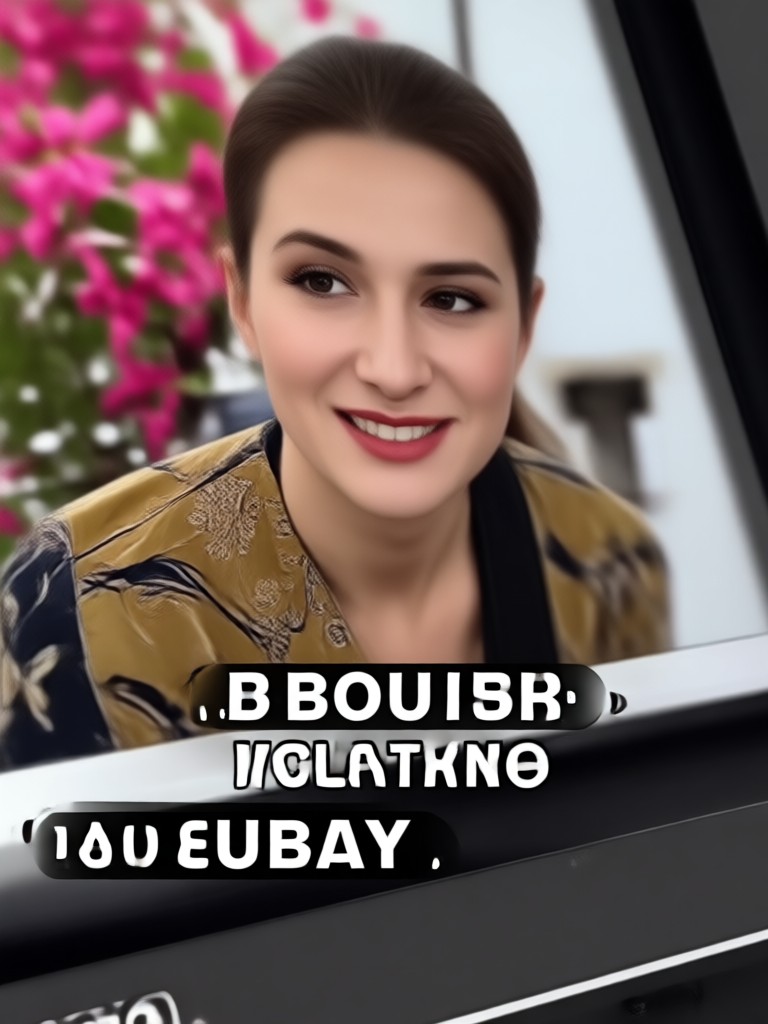
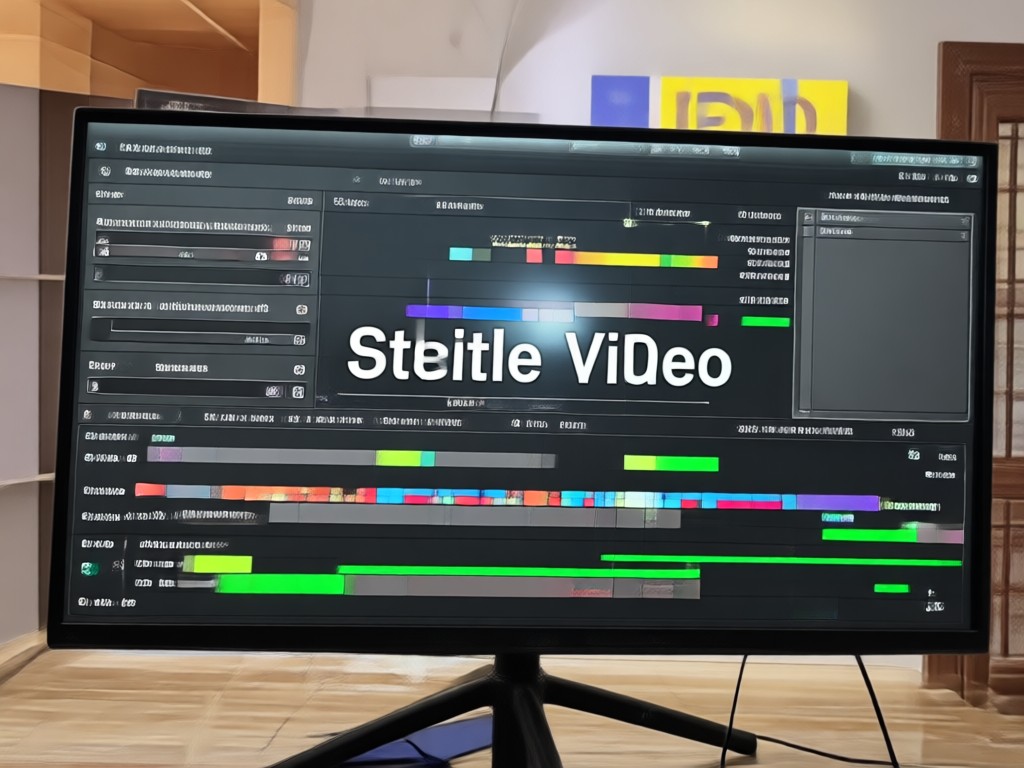
Explore AI-generated videos with clean, engaging subtitle styles. See how creators use Beyo to add captions and text overlays that capture attention.




Why Choose Beyo for Subtitle Video Editing
Editing subtitles can be tedious, but Beyo turns it into a one-tap process. Upload your video, pick a caption style, and let AI handle timing, placement, and readability. Create professional-looking content without spending hours in complex editing software.
Why Choose Beyo for Subtitle Video Editing
Editing subtitles can be tedious, but Beyo turns it into a one-tap process. Upload your video, pick a caption style, and let AI handle timing, placement, and readability. Create professional-looking content without spending hours in complex editing software.
How to Edit Subtitle Videos with Beyo
Follow these three simple steps to add and customize subtitles on your videos using the Beyo app.
Step 01.
Download the Beyo app from Google Play and open it on your mobile device to start editing subtitle videos.
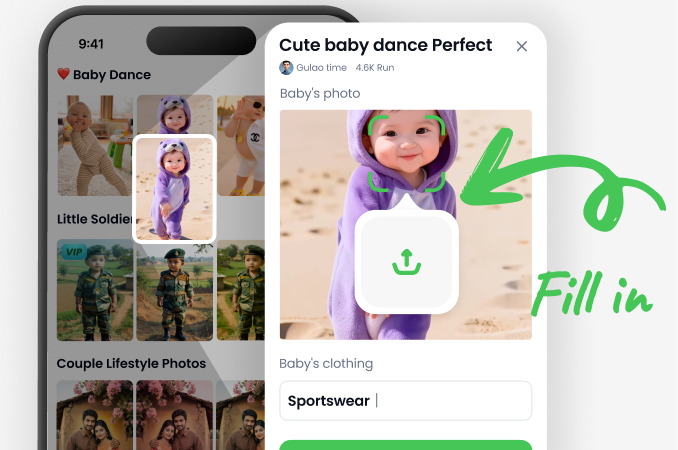
Step 02.
Upload your video and select a subtitle style or auto caption filter that matches your content and audience.
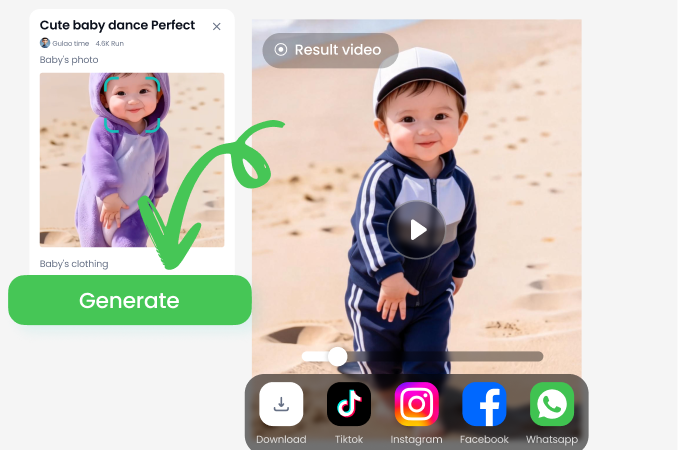
Step 03.
Generate your edited video with synced subtitles, preview it, and share or download the final clip instantly.
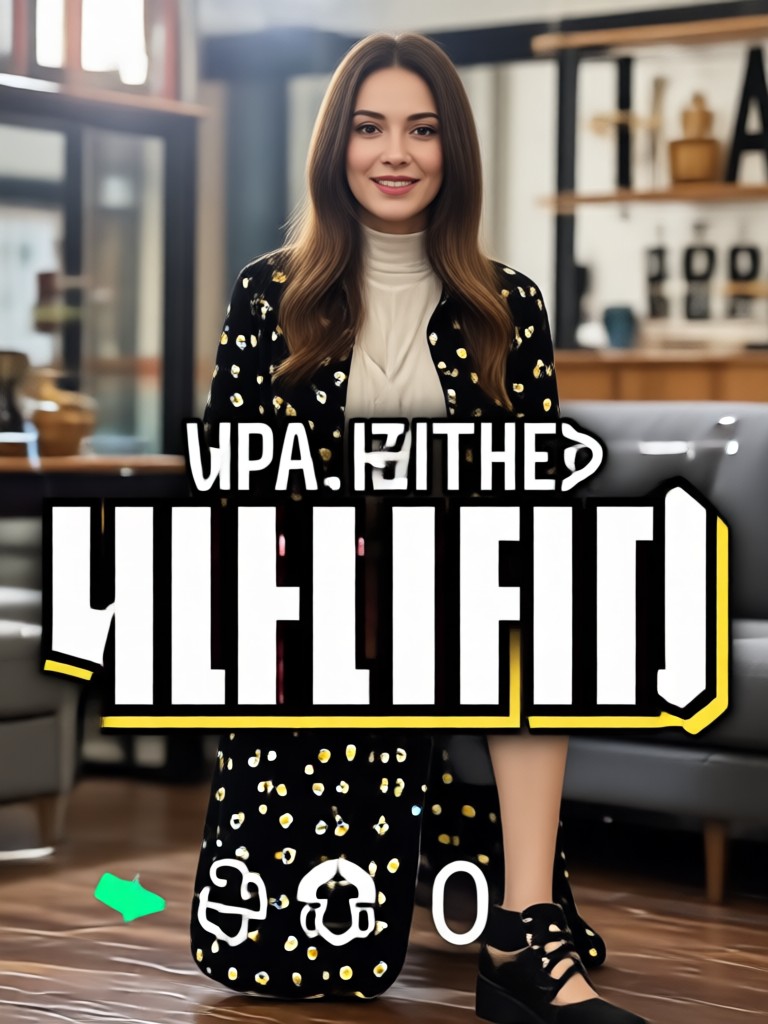
Edit Subtitle Video on Mobile
Download Beyo and start adding, restyling, and syncing subtitles to your videos. Everything you need is on your phone, no desktop software required.

What Creators Say About Editing Subtitle Videos
Subtitle editing that actually saves time
I used to spend ages manually syncing captions in another app. Beyo's auto subtitle feature gets it right most of the time. I just tweak the style and export. It has become my go-to for YouTube Shorts.
My social videos finally look professional
The subtitle templates are clean and modern. I can change fonts and colors in seconds, and the text stays perfectly synced with my voice. My engagement went up because captions are always readable.
Perfect for multilingual videos
I create videos in two languages. Being able to quickly restyle and adjust subtitles for each version saves me hours every week. The app is fast and surprisingly intuitive.
Frequently Asked Questions About Editing Subtitle Videos
Find clear answers to common questions about adding, syncing, and styling subtitles with Beyo.
Ready to Edit Subtitle Videos Faster?
Download Beyo and turn your raw clips into polished videos with perfectly synced, stylish subtitles. Start creating today.
Ready to Edit Subtitle Videos Faster?
Download Beyo and turn your raw clips into polished videos with perfectly synced, stylish subtitles. Start creating today.