Why Removing Emoji Stickers From Photos Is Harder Than It Looks
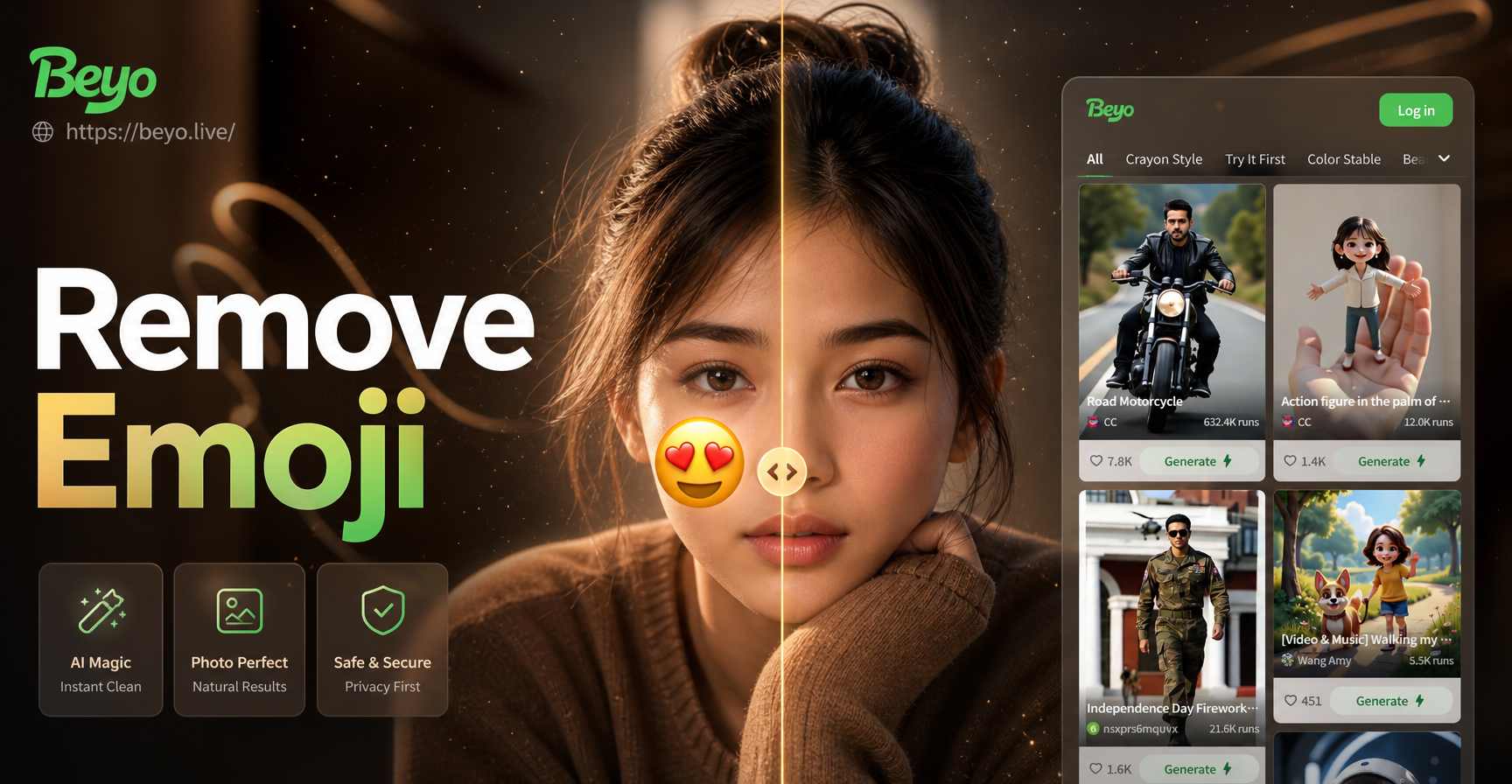
When you add an emoji to a photo, it covers a region of pixels. The original image information underneath that emoji is often lost, especially after exporting or sharing. Most phones and social apps save a flattened copy, so the emoji becomes part of the picture. Removing it is not as simple as deleting a layer. You have to reconstruct the hidden area, which is why simple erasers usually leave a blank or blurry patch.
The good news is that several free and paid tools can do a convincing job. The best method depends on where the emoji is, how large it is, and what is hidden behind it. Below are the most reliable ways to remove photo emoji and get a clean result.
Method 1: Use Google Photos Magic Eraser
Google Photos includes a feature called Magic Eraser, designed to remove unwanted objects like people, trash, and yes, emoji stickers. If you use an Android phone or have Google Photos installed on iPhone, this is often the fastest option.
Steps to remove an emoji with Magic Eraser
- Open Google Photos and select the photo with the emoji.
- Tap Edit, then Tools, then Magic Eraser.
- Circle or brush over the emoji. Google Photos will analyze the surrounding pixels and try to fill the area naturally.
- If the first result looks off, undo and try a smaller brush. You can also tap the eraser multiple times to refine.
- Tap Done, then Save a copy to keep your original photo.
Magic Eraser works best on small emojis placed over simple backgrounds like sky, grass, or walls. On detailed areas such as faces or patterned clothing, the result may look smudged. For those situations, try one of the AI methods below.
Method 2: Use a Dedicated Object Removal App
Apps like TouchRetouch, Snapseed, and Cleanup.pictures specialize in removing unwanted elements from photos. They use content-aware healing algorithms that sample nearby pixels and blend them into the removed region.
TouchRetouch
TouchRetouch is available for both Android and iPhone. It has a quick brush tool, a lasso tool for precise selection, and a line removal tool. After selecting the emoji, the app automatically fills the area with a matching background. You can adjust the result with the clone stamp or refine the edges.
Snapseed Healing
Snapseed, a free Google app, has a Healing tool. Open the photo, tap Tools, then Healing. Use your finger to paint over the emoji. Snapseed will blend the area with surrounding pixels. The Healing tool is effective for small to medium emojis but can struggle with large stickers that cover important details.
Method 3: Recreate the Clean Photo With an AI Image Generator
When an emoji covers a large or important part of the photo, such as a face or a unique background pattern, traditional healing tools may not produce a realistic result. In these cases, you can use an AI image generator like beyo to recreate a clean version of the photo. beyo is a mobile app that turns text prompts and reference images into new visuals. You can upload your photo as a reference and describe the scene without the emoji. The AI will generate a fresh image that preserves the overall subject and style while removing the unwanted overlay.
How to use beyo for emoji removal workaround
- Download beyo from Google Play.
- Open the app and choose the image-to-image option.
- Upload the photo that contains the emoji.
- In the prompt, describe the scene, for example, a portrait of a woman smiling in a park during golden hour, no emoji, no sticker, clean background.
- Select a style template that matches the original photo, such as realistic or soft light.
- Generate the image and pick the version that looks closest to your original but without the emoji.
This method is not a pixel-perfect removal, but it is very useful when the emoji covers a large area or the original pixels are gone. Because beyo uses the photo as a reference, it keeps the subject and composition recognizable while creating a clean result. You can also try different prompts or templates to improve the output.
Method 4: Manual Cloning in Desktop Editors
If you have access to Photoshop, GIMP, or Affinity Photo, you can remove the emoji manually with the Clone Stamp or Healing Brush. This gives you full control over the result.
Photoshop Clone Stamp
- Open the image and duplicate the background layer.
- Select the Clone Stamp tool and set the brush hardness to 0 for smooth blending.
- Hold Alt (Option on Mac) and click on a clean area near the emoji to sample it.
- Paint over the emoji in small strokes. Resample often to avoid repeating patterns.
- Use the Healing Brush for any remaining seams or color mismatches.
Manual cloning takes practice but can produce the most accurate results, especially on detailed textures like hair, fabric, and skin. For large emojis, work in sections and use a low opacity brush to gradually build up the area.
Method 5: Crop or Cover the Emoji
Sometimes the easiest solution is not to remove the emoji at all. If the emoji is near the edge of the photo, cropping it out may work. For example, if the emoji sits in the top corner above a person's head, a simple crop can eliminate it without losing important content. If cropping is not possible, you can cover the emoji with another element, such as a caption box, a decorative border, or a solid shape that matches the image. This is not a true removal, but it can make the photo usable for social media or printed cards.
How to Choose the Best Emoji Removal Method
- Small emoji on a simple background: Use Google Photos Magic Eraser or Snapseed Healing.
- Medium emoji with moderate detail: Use TouchRetouch or a desktop healing brush.
- Large emoji covering a face or complex scene: Recreate the photo with beyo or use manual cloning.
- Emoji near the edge: Crop it out.
- No editing skills: Use an AI-powered online cleaner like Cleanup.pictures.
Common Problems and How to Fix Them
Blurry or smudged patch
This usually happens when the healing tool samples from too broad an area. Reduce the brush size and work in smaller strokes. In Photoshop, lower the clone stamp opacity and resample frequently.
Repeated texture or pattern
If you see an obvious duplicated pattern, switch to a different sample point or use a smaller brush. In Magic Eraser, undo and try selecting only part of the emoji at a time.
Color mismatch in the repaired area
Use a color adjustment tool or a soft brush to paint over the patch with the correct tone. In Snapseed, you can use the Selective tool to adjust brightness, contrast, and saturation locally.
AI generation looks different from the original
When using beyo, make sure your prompt includes specific details about the scene, lighting, and subject. The more context you provide, the closer the generated image will match your original. You can also run the generation multiple times and choose the best result.
Final Tips for Clean Emoji-Free Photos
Always work on a copy of the original photo, not the only file. Before exporting, zoom in to check the repaired area at full resolution. Small imperfections are less visible on phone screens or social media, but they can show up in prints or enlarged images. If you plan to share the photo online, a high-quality AI regeneration from beyo often looks more natural than a heavily healed patch. For quick fixes, built-in tools like Magic Eraser are hard to beat.