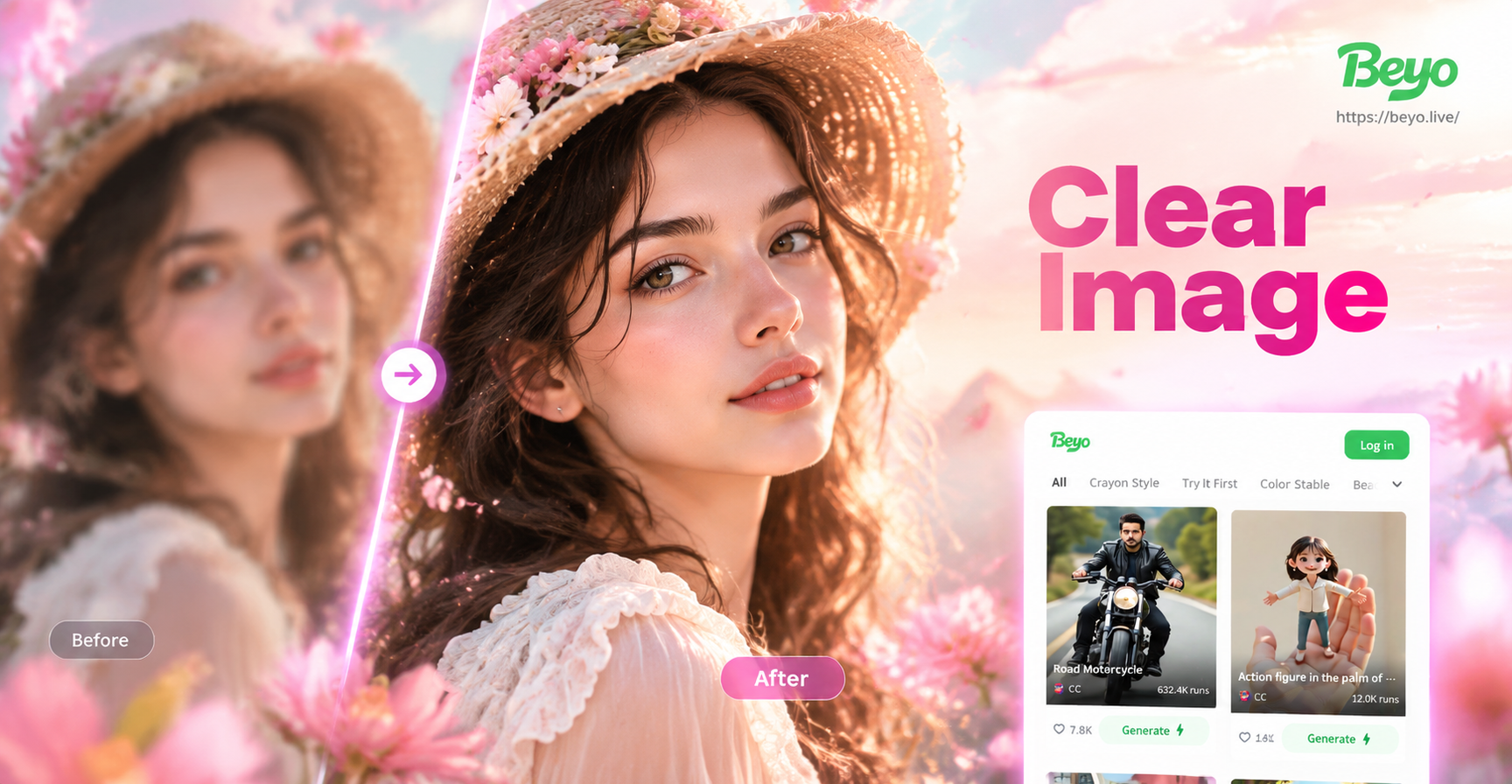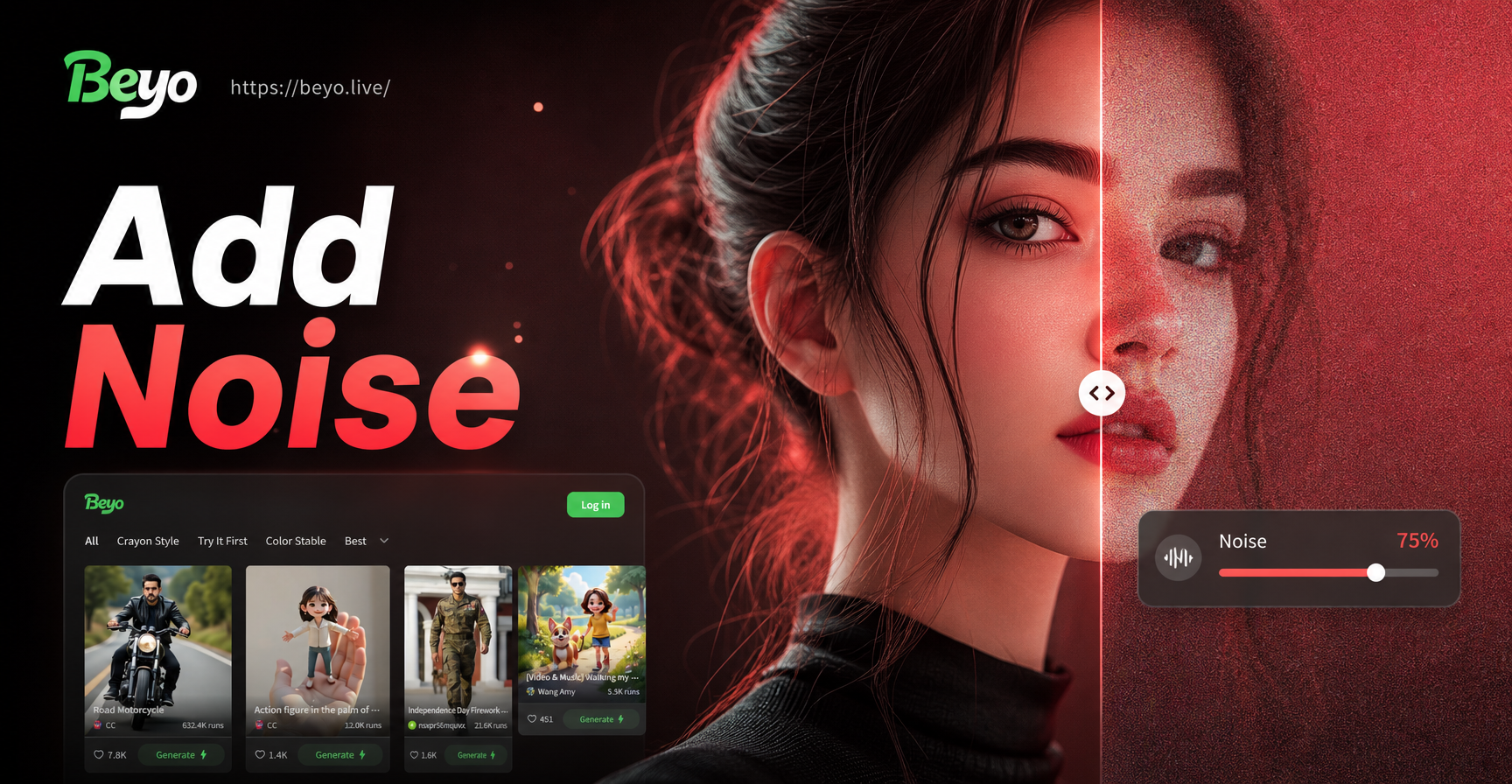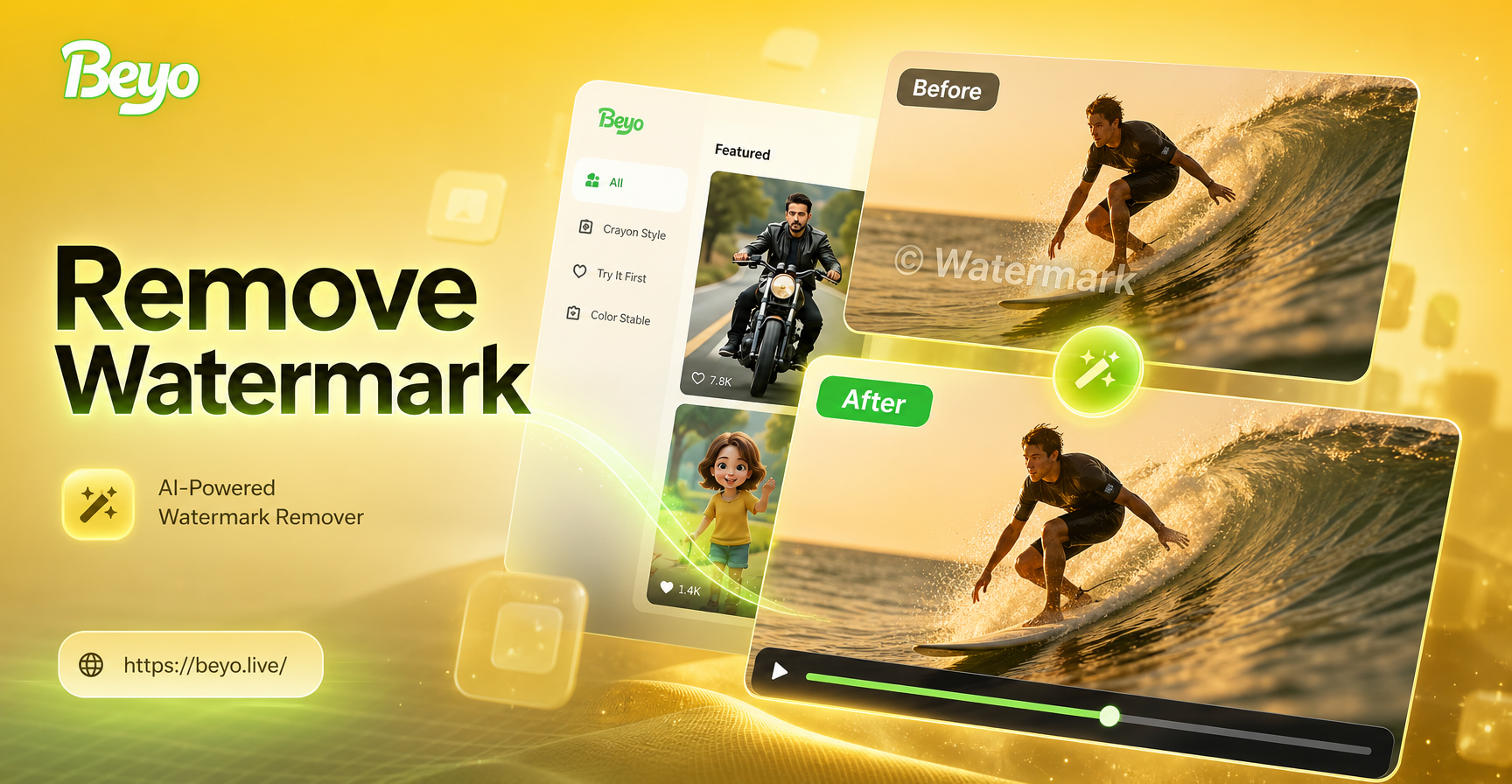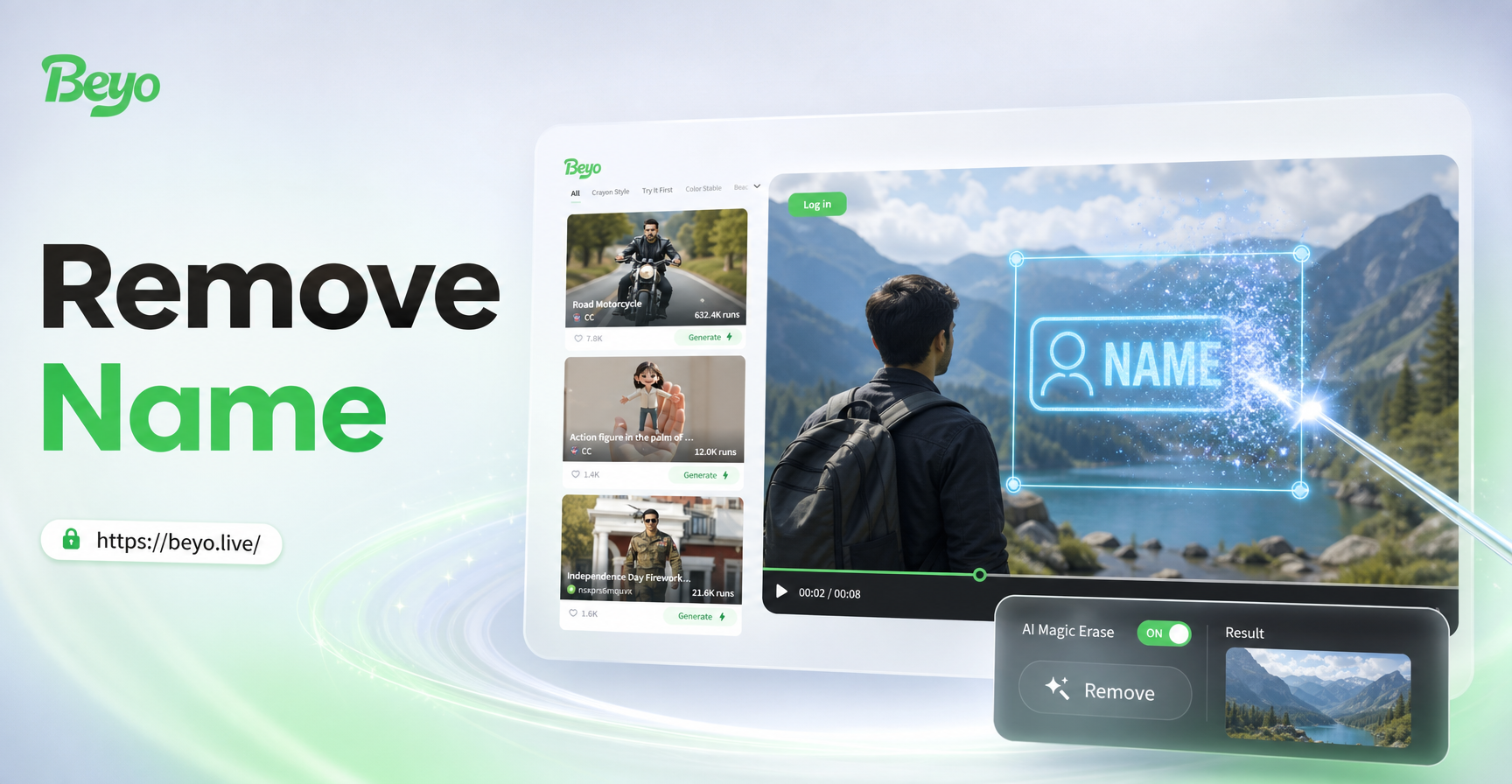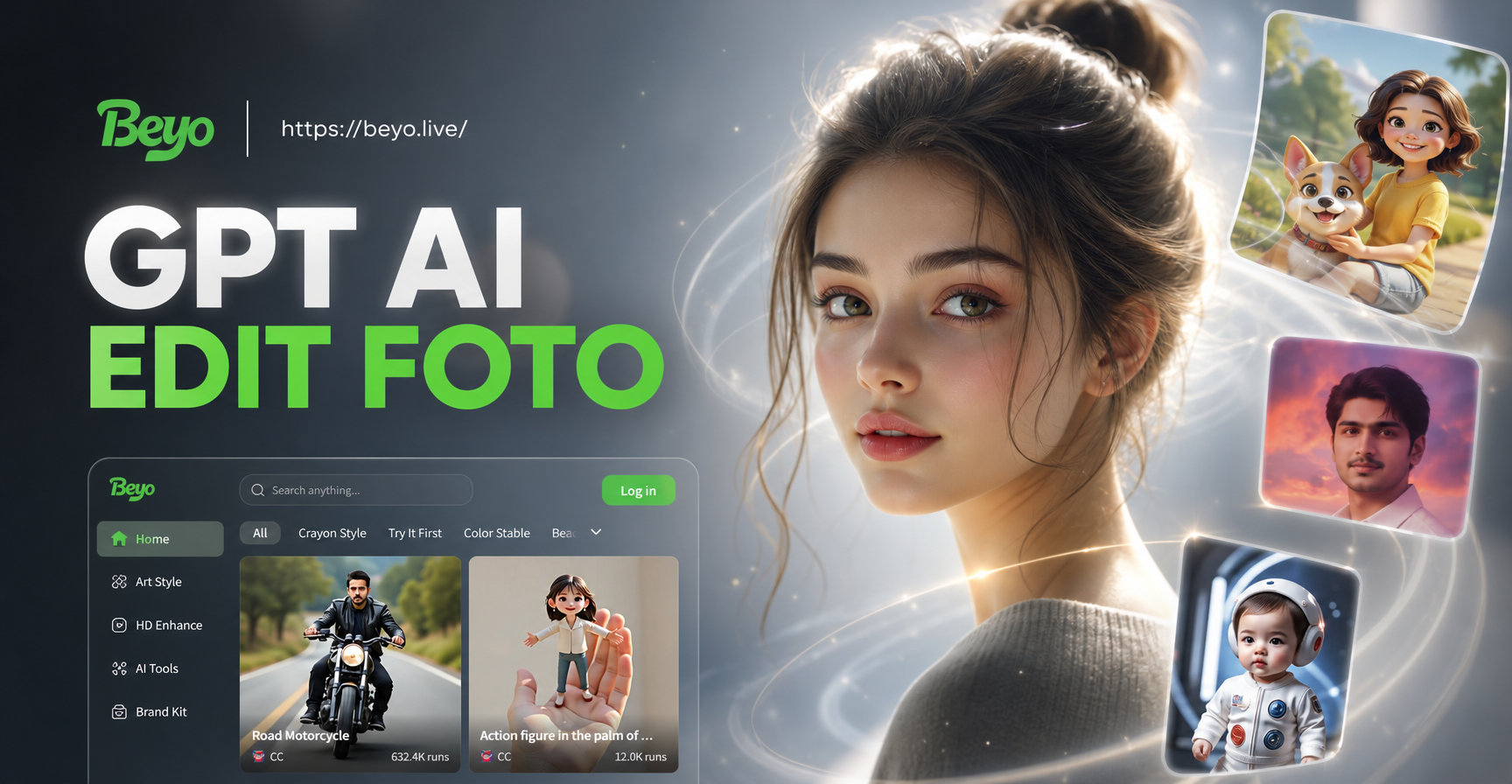
Gpt AI Edit Foto refers to using GPT based artificial intelligence models, including ChatGPT with vision or multimodal functions, to edit photographs through natural language instructions. Instead of adjusting sliders or learning complex software, you upload a photo and tell the AI exactly what you want to change. The AI interprets your request and generates an edited version. This guide explains how GPT AI photo editing works, gives you practical prompts you can use today, and shows when a dedicated mobile app like beyo saves you time.
How GPT AI Photo Editing Works
GPT models that support image input and output can analyze a photo and apply edits based on your text prompt. For example, ChatGPT with vision can describe what it sees, identify objects, and suggest improvements. When combined with image generation tools such as DALL-E, the model can produce a new image that follows your editing instructions while keeping the original composition in mind.
The core idea is prompt driven editing. You do not need to manually select areas, adjust colors, or remove objects. You write a sentence like "remove the background and replace it with a clean white studio setting" and the AI attempts to produce that result. This makes photo editing accessible to people without design experience.
What GPT AI Can and Cannot Edit
GPT AI can handle many common photo editing tasks such as background replacement, object removal, color correction, style transfer, and adding or removing elements. It can also enhance low resolution images, adjust lighting, and apply artistic filters. However, it is not perfect for precise retouching that requires pixel level control, such as professional portrait skin smoothing or exact product color accuracy. For those tasks, dedicated photo editors still outperform general purpose AI models.
Step by Step: How to Edit Photos with GPT AI
Follow these steps to get the best results from GPT based photo editing tools. The exact interface may vary depending on the platform you use, but the workflow stays the same.
Step 1: Choose Your Tool
Select a GPT powered image editing tool. Options include ChatGPT with image generation enabled, Microsoft Copilot with Designer, or specialized AI photo editors that use GPT like language models. If you prefer a mobile only experience, beyo offers a wide range of AI filters and one click transformations directly on your phone.
Step 2: Upload Your Photo
Start with a clear, well lit photo. Higher resolution images give the AI more detail to work with, which leads to better edits. Avoid heavily compressed or blurry images because the AI may introduce artifacts. If you are using a chat based tool, upload the image and wait for the model to confirm it can see the photo.
Step 3: Write a Clear Edit Prompt
Describe the edit you want in plain language. Be specific about what to change, what to keep, and the desired style or mood. For example, "Keep the person exactly the same but change the background to a sunny beach with soft golden hour light." The more detail you provide, the more accurate the result will be. Avoid vague prompts like "make it better" because the AI will guess what you mean.
Step 4: Review and Refine
After the AI generates an edited image, review it carefully. If something is off, describe the problem in your next prompt. For example, "The background changed but the person's hair looks blurry, fix the hair and keep the new background." Iterative feedback helps the AI converge on the image you want. Do not expect perfect results on the first try.
Example Prompts for GPT AI Photo Editing
Here are practical prompts you can copy and adapt for your own photos. Replace the bracketed details with your specific needs.
- Remove the background from this photo and replace it with a clean white studio background.
- Enhance the lighting in this portrait and add a soft warm tone without changing facial features.
- Change the sky in this landscape photo to a dramatic sunset with orange and purple clouds.
- Remove the person in the red shirt from this group photo and fill the space naturally.
- Transform this photo into a watercolor painting style while keeping the main subject recognizable.
- Make this old photo look like it was taken today with a modern smartphone, improve sharpness and colors.
- Add a cup of coffee on the table next to the laptop and make the lighting match the rest of the scene.
- Convert this daytime photo into a night scene with visible stars and a glowing street lamp.
- Change the outfit of the person in this photo to a business suit without altering the face or body posture.
- Apply a cinematic color grade with teal and orange tones to this video still image.
When using these prompts, remember to specify what must stay unchanged. For example, "Keep the face exactly the same" or "Do not alter the clothing colors." This reduces unwanted changes.
Common Challenges and How to Fix Them
GPT AI photo editing is powerful but not flawless. Understanding common issues helps you get better results faster.
Low Resolution or Artifacts
If the output looks pixelated or has strange textures, ask the AI to regenerate at a higher resolution or use a dedicated upscaler afterward. Starting with the highest quality original photo also helps.
Inaccurate Edits
When the AI changes something you wanted to keep, point out the mistake in your next prompt. Be explicit: "You changed the eye color, keep the original eye color." If the tool supports region based editing, use that feature to isolate the area.
Preserving Original Identity
For portraits, telling the AI to keep the face, hairstyle, and clothing colors exactly the same can prevent identity drift. Some tools allow you to mark a reference image for style transfer. If the result looks like a different person, go back and emphasize identity preservation.
GPT AI Edit Foto vs Traditional Photo Editing Software
Traditional software like Photoshop gives you complete control over every pixel, but it requires training and time. GPT AI tools trade some of that control for speed and simplicity. You describe what you want in a sentence, and the AI does the heavy lifting. For quick fixes, creative experiments, and social media content, GPT AI often wins on convenience. For high end commercial work that needs exact color matching or complex compositing, traditional tools remain the standard.
Creative Use Cases for GPT AI Edit Foto
GPT photo editing is not limited to basic retouching. You can use it for imaginative transformations that would take hours in manual software. Turn a pet photo into a royal portrait, place yourself in a famous painting, or change the season in a landscape shot. Small business owners use it to create product mockups with different backgrounds. Social media creators use it to test multiple visual styles before posting. The only limit is your ability to describe the result you want.
Tips for Writing Better Edit Prompts
Writing effective prompts is a skill. Start with the main action, then add context, style, and constraints. For example, "Remove the trash can from the sidewalk, keep the pavement texture consistent, and preserve the sunlight direction." This structure gives the AI clear instructions. Use descriptive adjectives for mood and lighting. Mention the final output format if needed. If the result is not what you expected, do not start over. Instead, tell the AI what went wrong and ask for a specific correction.
When to Use GPT AI for Photo Editing vs Dedicated Apps
GPT based tools are great for quick, creative, and exploratory edits. They work well when you want to generate variations, apply artistic styles, or make broad changes. Dedicated mobile apps like beyo are better when you want fast, one tap filters, consistent results, and no need to write long prompts.
GPT AI Strengths
GPT AI understands natural language, so you can describe complex edits without learning tools. It can combine visual and textual context, making it useful for brainstorming and creative experiments. It is also good at generating entirely new elements that fit the photo.
Limitations
General purpose GPT models may struggle with exact color accuracy, precise selection edges, and maintaining fine details. They can also produce inconsistent results across multiple images. Professional workflows still need manual software for critical work.
Try beyo for Instant AI Photo Transformations
If you want to edit photos with AI without writing prompts, beyo is a mobile app that offers more than one million style filters and templates. You can upload a photo, choose a style, and generate a new image or video in seconds. It supports text to image, image to image, and image to video, which covers most creative photo editing needs. Download beyo from Google Play and start experimenting today.
Conclusion
Gpt AI Edit Foto opens up photo editing to everyone. By describing what you want in plain language, you can change backgrounds, apply styles, remove objects, and enhance images without professional software. Use the prompts and steps in this guide to start editing your photos today. For faster and more consistent mobile results, try beyo and explore its huge library of AI filters.