What Does It Mean to Add a Person in a Photo?
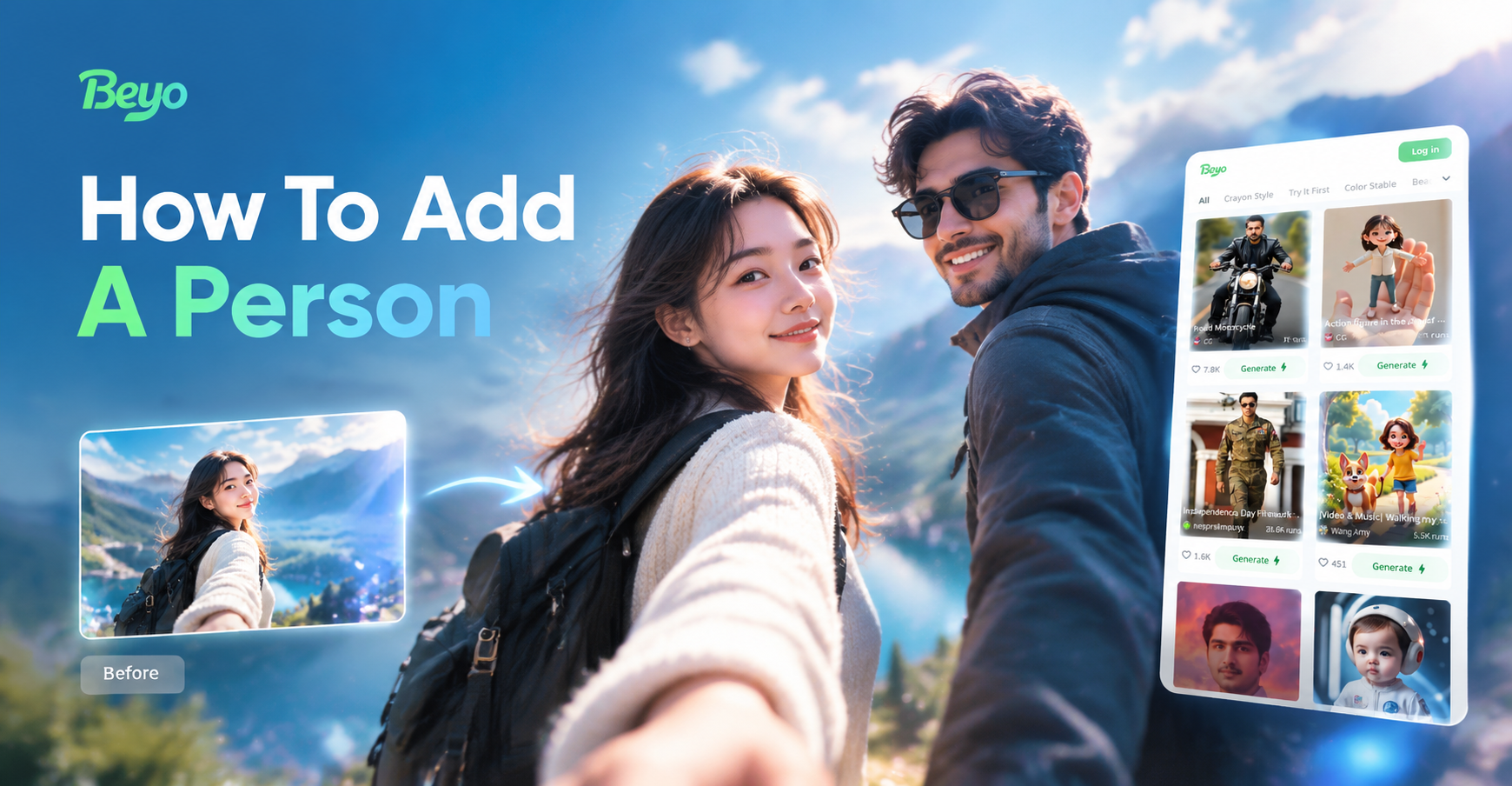
Adding a person in a photo means placing a new subject into an existing image so the final result looks natural. You might want to include a friend who missed a group picture, combine family members from separate shots, or create a creative composite for social media. Traditional editing requires precise cutouts, color matching, and manual shadow work. AI tools simplify this by analyzing the base photo, understanding lighting and perspective, and blending the new person into the scene automatically.
With beyo, you can do this directly on your phone. The app's image to image and group photo features let you upload a base photo and a photo of the person you want to add. The AI then matches style, scale, and lighting so the person appears to belong in the scene.
Why Use AI to Add a Person?
Manual photo compositing in desktop software can take hours. You need to remove backgrounds, adjust color temperature, match grain, and paint shadows. AI dramatically speeds up this workflow. Instead of learning complex masking tools, you describe what you want or let the app suggest a blend. The result is often realistic enough for social media, group keepsakes, and casual edits.
beyo offers more than one approach. You can use a text prompt to generate a person into a scene, upload a reference photo for precise control, or work with a group photo so the AI recognizes multiple faces. Because the app uses massive style filters, you can also match the artistic look of the original photo, from realistic photography to illustration.
Three Ways to Add a Person in Photos
beyo gives you multiple ways to add a person, depending on the source material you have.
Use a Text Description
If you do not have a separate photo of the person, you can type a detailed description. The AI will generate a new face and body based on your prompt, then place the person into the scene. This works well for creative or imaginary additions.
Use a Reference Photo
When you need a specific real person, upload a clear photo of them. The AI will preserve their facial features and body shape while blending them into the base image. This is the best method for adding a friend or family member to a group photo.
Use the Group Photo Feature
For group shots, the group photo mode identifies different faces and lets you add or replace a person without losing the rest of the image. This is useful when one person blinked or was not present when the picture was taken.
What You Need Before You Start
A good result starts with good source images. Choose a base photo with clear lighting and enough resolution. Pick a person photo taken from a similar angle and with similar lighting if possible. A front facing or three quarter view works best. Avoid extreme shadows that hide facial features. The AI can handle many mismatches, but closer sources produce better blends.
Also think about where the new person should stand or sit. If the base photo has an obvious empty space, adding a person there will look more natural. If the space is crowded, you may need to describe the placement more carefully or use a closer crop.
How to Add a Person in Photos with beyo
Follow these steps inside the beyo app. The interface is designed for beginners, so you will not need advanced design skills.
Step 1: Download and Open beyo
Get beyo from Google Play and install it on your Android phone. The app is mobile only, so all editing happens directly on your device. Open the app and create an account if prompted.
Step 2: Choose the Right Mode
For adding a person to an existing photo, select the image to image editing option. If you are adding someone to a group photo, look for the group photo feature. Both options let you upload a base image and guide the AI.
Step 3: Upload the Base Photo
Pick the photo that will serve as the background scene. Make sure the image is sharp and well lit. The app will analyze the scene when you proceed to the next step.
Step 4: Add the Person Photo or Description
You can upload a separate photo of the person you want to add. Alternatively, describe the person with a text prompt if you do not have a reference image. For example, write: Add a smiling woman with dark hair standing on the left side of the family photo, soft daylight, casual clothes.
Step 5: Generate and Review
Tap the generate button and wait a few seconds. The AI will produce a composite image. Review the result for scale, lighting, and face consistency. If something looks off, adjust the prompt or upload a clearer person photo and generate again.
Step 6: Save and Share
When the result looks right, save it to your phone. You can share it directly to social media or send it to friends and family.
Practical Ideas for Adding a Person
Here are a few scenarios where this technique works well. Each idea includes a simple prompt you can adapt inside beyo.
- Missing friend in a group photo: 'Add a young man with short black hair to the right side of the group photo, matching the warm indoor light and casual style.'
- Family reunion composite: 'Place an older woman in a blue sweater next to the family on the sofa, soft natural light from the window.'
- Creative portrait: 'Add a person standing in the empty field, golden hour light, cinematic photo style.'
- Replacing a closed eye or blurry face: 'Use the reference photo to replace the blurred face of the boy in the striped shirt, keep the same angle and expression.'
- Adding a pet owner: 'Add a smiling man behind the golden retriever in the park, shallow depth of field, realistic photo.'
Tips for Realistic Results
- Match the light direction. If the base photo has sunlight from the left, choose a person photo with similar side lighting.
- Match the camera angle. A person photographed from below will look strange if the base photo was taken at eye level.
- Use high resolution images. Low quality source photos make the composite look soft or blurry.
- Keep clothing consistent. Formal clothes work better for formal scenes. Casual clothes fit relaxed settings.
- Do not overcrowd the frame. Leave some space around the new person so the AI can blend edges naturally.
Common Problems and How to Fix Them
Sometimes the first result is not perfect. Here are the most common issues and quick fixes.
The face looks distorted
This usually happens when the person photo is very small or has an unusual angle. Upload a larger, front facing photo and generate again.
The lighting does not match
Choose a reference photo with similar brightness. You can also add a phrase like 'matching the warm indoor lighting' to your prompt.
The person is too large or too small
Describe the placement in your prompt. For example, say 'standing next to the door, same height as the woman in the green dress'. If the app allows, crop the base photo to focus on the area where the person should appear.
The edges look unnatural
Use a base photo with a simple background. Busy backgrounds make blending harder. If the result still looks off, try the image to image feature with a style filter that complements the photo.
Is It Safe to Edit Photos Like This?
Yes, for personal use and creative projects, AI photo editing is safe. However, you should avoid creating misleading images that could harm someone or spread false information. Always get permission from the person you are adding, especially if the photo will be shared publicly. Respect privacy and local laws.
Frequently Asked Questions
Can I add a person to a photo on my phone?
Yes. beyo is a mobile app for Android, so you can add a person to a photo directly on your phone without a computer.
Do I need design skills to add someone to a photo?
No. The app uses AI to handle complex blending, lighting, and scale. You only need to upload photos and optionally type a short description.
What types of photos work best?
Clear, well lit photos with visible faces and simple backgrounds produce the most realistic results. Group photos with some empty space are easier to edit than very crowded frames.
Can I add more than one person at a time?
Yes, you can describe multiple people in your prompt or use the group photo feature. For best results, add one person at a time and generate separate composites, then combine if needed.
Is beyo free to use?
beyo offers free access to core features with optional premium filters. You can start editing immediately after downloading the app.
Start Adding People to Your Photos Today
Adding a person in photos no longer requires hours of desktop editing. With beyo, the process takes minutes on your phone. Download the app, choose your mode, and let AI handle the alignment, lighting, and blending. Whether you want to fix a group photo, build a creative portrait, or simply include a missing friend, the tools are already in your pocket.