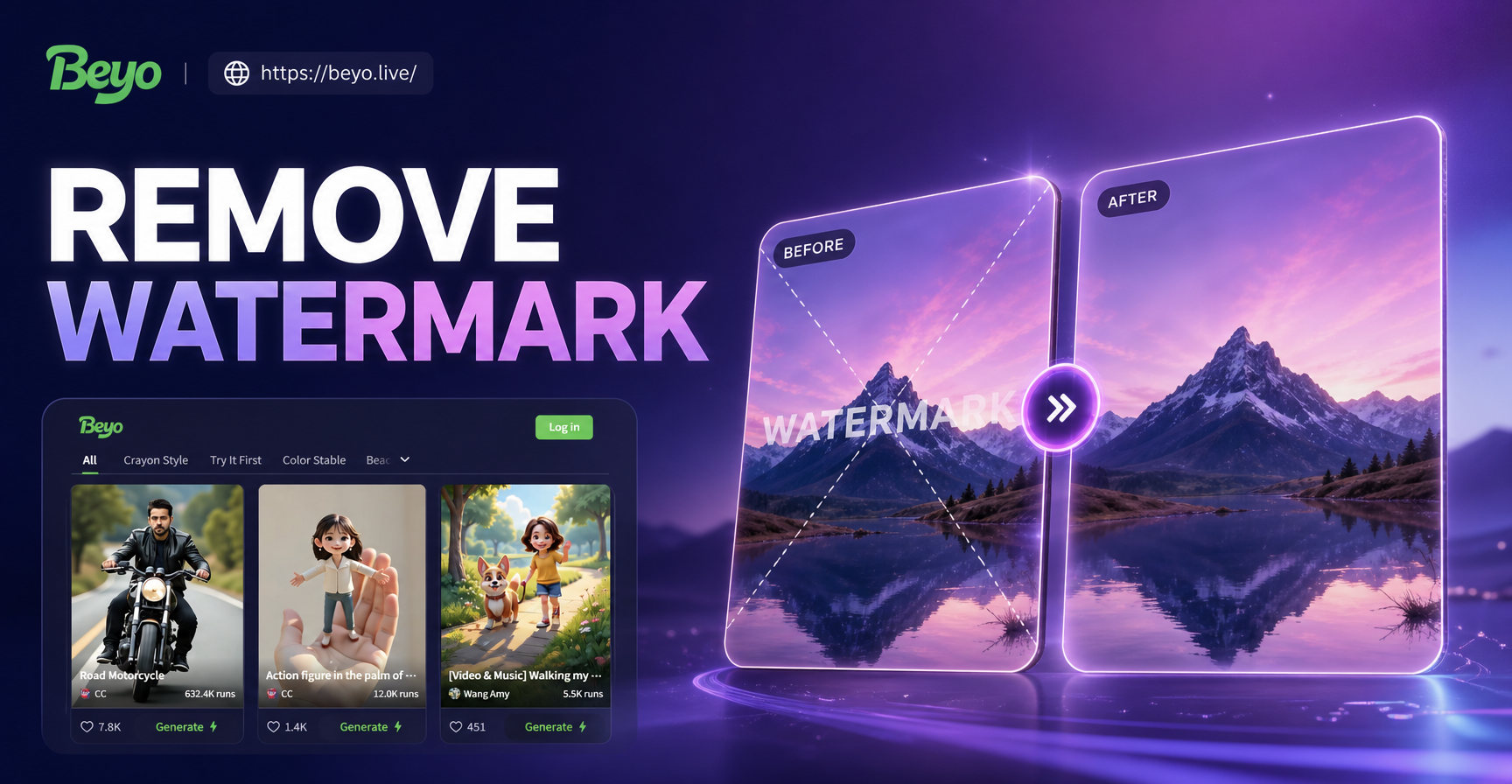
Removing a watermark from a video is possible, but there is no single perfect tool for every clip. The right method depends on the watermark position, whether it moves, and how detailed the background is. This guide explains how to remove watermarks with cropping, blurring, clone tools, AI inpainting, and dedicated removers. Use these techniques only on videos you own or have permission to edit.
Why Video Watermarks Are Hard to Remove
A watermark is not a static overlay. It can be a corner logo, a semi transparent tile across the frame, or a moving text that follows a face. Because video contains 24, 30, or 60 frames per second, a removal method that looks clean on one frame may flicker on the next. You need a method that works over time, not just on a still image.
Soft edges, transparent pixels, and busy backgrounds make cloning harder. The more movement behind the watermark, the more likely you will see a visible patch.
Legal and Ethical Considerations First
Never remove a watermark from someone else's video. Watermarks protect copyright and ownership. Removing them from stock previews, templates, client drafts, or social videos without permission can violate copyright law and platform policies. You may remove your own export logo, a misplaced caption, or an element you have written permission to edit. When in doubt, re-create the clip instead.
Method 1: Crop the Watermark Out
Crop is the fastest fix for a corner logo. You change the frame so the watermark is outside the visible area. Most editors do this with a crop tool or by scaling the clip up. The method leaves no blur or distortion, but it permanently removes part of the frame. If you zoom in to fill the original aspect ratio, you also lose detail.
Best for: corner logos, static watermarks, short clips where you can afford to change composition.
How to crop a watermark:
- Import the video into CapCut, Premiere Pro, DaVinci Resolve, or any editor with a crop tool.
- Select the clip on the timeline and open the crop or scale control.
- Drag one edge inward until the watermark disappears from the frame.
- Preview the new composition and make sure no important subject is cut off.
- Export at the highest available resolution to minimize softening.
If the watermark is a small corner logo and the subject is centered, crop is often the cleanest option.
Method 2: Blur or Pixelate the Watermark
Blur and mosaic effects hide a watermark by making it unreadable. This is useful when the watermark moves because you can keyframe the effect position. The main downside is that you are replacing a logo with a soft or blocky patch, which can still be visible against a detailed background.
How to blur a watermark:
- Add a mosaic, gaussian blur, or pixelate effect to the clip.
- Use a mask or effect area to restrict the blur to the watermark.
- Size the area slightly larger than the watermark to soften its edges.
- If the watermark moves, enable keyframes and move the area frame by frame.
- Add a narrow soft edge so the patch blends better.
Blur works best on simple backgrounds and when viewers are not looking directly at the patch.
Method 3: Clone and Patch the Watermark Area
Clone stamp tools copy pixels from one part of the frame and paint them over the watermark. This is closer to a true removal than blur, but it requires more work. On a flat background like a wall, sky, or table, cloning can look seamless. On complex motion, it becomes tedious and may smear.
How to clone a watermark in After Effects:
- Duplicate the video layer so you always keep the original intact.
- Select the Clone Stamp tool and choose a clean source point near the watermark.
- Paint over the watermark on the current frame.
- Move the playhead forward and repeat, or use the tracker to follow motion.
- Alternate source points often to avoid visible repeating patterns.
This method is best for static watermarks over flat backgrounds. It preserves the original resolution better than cropping.
Method 4: Content-Aware Fill and AI Inpainting
Content-aware fill and AI inpainters analyze the pixels around the watermark and generate a new background. This is the best option for complex textures, moving objects, and large overlays. It can recreate bricks, grass, skin, and other patterns more realistically than manual cloning.
How to use content-aware fill in After Effects:
- Create a mask around the watermark.
- Open the Content-Aware Fill panel.
- Set the fill method to Object and the range to Work Area.
- Click Generate Fill Layer and let After Effects create a new background.
- Preview the fill across the whole clip and check for swimming artifacts.
DaVinci Resolve has a similar Object Removal tool in the Color page. Online AI watermark removers use the same underlying idea, but they often lose quality on long or moving clips.
If AI inpainting leaves a wobbly patch, reduce the mask size, use a longer fill range, or combine it with a soft blur.
Method 5: Use a Dedicated Watermark Remover
Dedicated apps and web tools package object detection, tracking, and inpainting into a simpler workflow. They can be a reasonable first step for a static logo or a slow moving watermark. However, be realistic. No tool can perfectly remove every watermark from every clip. Transparent tiled watermarks, fast motion, and low light footage will still produce visible artifacts.
For an AI creative alternative, beyo can generate original images and videos, including clean background plates or short replacement clips. Keep in mind that beyo is a mobile AI design app, not a dedicated watermark remover. Use it when the better solution is to generate a new clean segment instead of repairing pixels.
Step by Step: Remove a Corner Watermark in CapCut
CapCut is a free editor available on mobile and desktop. It is one of the easiest tools for quick crop and blur fixes.
- Import the watermarked video into CapCut.
- Tap the clip and select Edit, then Crop or Mask.
- For crop, drag the corners until the watermark is outside the frame.
- For blur, choose Effects, search for Mosaic, and apply it to the clip.
- Use the mask tool to restrict the mosaic to the watermark area.
- If the watermark moves, add keyframes at the start and end, then move the effect to follow it.
- Export at the original resolution and watch the full clip before publishing.
How to Remove a Moving Watermark
Moving watermarks are the hardest to remove. A static patch will slide out of place and reveal the watermark again. You need tracking or keyframing to follow the watermark over time.
- Add a blur, mosaic, or mask over the watermark in the first frame.
- Enable keyframing for the effect position or mask path.
- Move the playhead forward and reposition the effect.
- Use automatic tracking if your editor supports it, but always check the track frame by frame.
- Adjust the effect size if the watermark scales or rotates.
- Export a test clip and review it at half speed.
For a moving watermark over a complex background, content-aware fill usually gives better results than a tracked blur.
Common Mistakes That Make Watermark Removal Worse
- Cropping too much and cutting off a person's head, hands, or important action.
- Using one static blur on a moving watermark, which creates a floating patch.
- Removing a watermark from content you do not own or have permission to edit.
- Judging a removal on a low resolution preview and missing visible seams.
- Overpainting with the clone tool so the background starts to repeat or smear.
- Expecting AI inpainting to rebuild fast watermarks over complex motion perfectly.
When Removal Fails: Recreate the Clip Instead
Sometimes the cleanest fix is not removal. If you have the original project, re-export it without the watermark. If you need a new background plate or a short replacement clip, use your own footage or generate a new one with a creative AI app. beyo can turn a still image into a short video or create a new visual from a text prompt. This prevents the artifacts and legal concerns that come with aggressive watermark removal.
Frequently Asked Questions About Removing Video Watermarks
Can I remove a watermark from any video?
No. Only remove watermarks from videos you own, created, or have clear permission to edit. Removing watermarks from protected content can violate copyright and platform rules.
Will cropping a watermark reduce video quality?
Yes. Cropping removes part of the frame, and zooming back to the original size stretches the remaining pixels. Use crop only for small corner logos and when you can accept a slightly softer image.
What is the best free tool to remove a watermark?
CapCut and DaVinci Resolve offer free crop, blur, and object removal options. After Effects has stronger content-aware fill but requires a subscription.
Can AI fully remove a moving watermark?
Sometimes. AI inpainting can rebuild simple and moderate backgrounds, but complex fast motion, transparent watermarks, and tiled patterns may still show artifacts. Preview at full resolution.
Is it easier to recreate the video than remove the watermark?
Often yes. If the watermark is large, moving, or over a detailed background, re-exporting from the original project or generating a clean replacement clip can be faster and better quality.
Does beyo remove video watermarks?
No. beyo is an AI creation app for generating images and videos. It can help you create clean replacement visuals, but it is not designed as a watermark removal tool.
Choose the Least Harmful Method First
Start with crop or re-export when possible. Use blur for quick covers, clone for flat backgrounds, and AI inpainting for complex scenes. Most importantly, only edit watermarks you have the right to remove. If a removal looks bad, stop and recreate the clip instead of forcing a patch that viewers will notice.